I built Clara because I was spending hours each month copying invoice data from Gmail into spreadsheets. Open the email, find the amount, the date, the tax — type it into a row. Next email. Repeat.
Clara is a Chrome extension that does this automatically. You tell it which vendors to watch, and it extracts structured data from their emails into a Google Sheet. Here's how to set it up.
What you'll need
- Google Chrome (desktop)
- A Gmail account with invoices you want to extract
- A Google account for Sheets (can be the same one)
Install the Chrome extension
Go to the Clara page on the Chrome Web Store and click “Add to Chrome.” Confirm the install when prompted.
Chrome will ask you to approve permissions. Clara requests read-only Gmail access — it cannot send, delete, or modify your emails. It also requests Google Sheets access so it can write the extracted data.
Screenshot: Chrome Web Store — Clara extension install page
Sign in with Google
Click the Clara icon in your Chrome toolbar to open the extension. You'll see a sign-in screen. Click “Sign in with Google” and pick the Gmail account that has your invoices.
This connects Clara to your Gmail so it can search for invoices from the vendors you choose. No emails are stored on our servers — invoice content is processed using Google's Gemini AI and the extracted fields go straight to your Sheet.
Screenshot: Clara sign-in screen with Google button
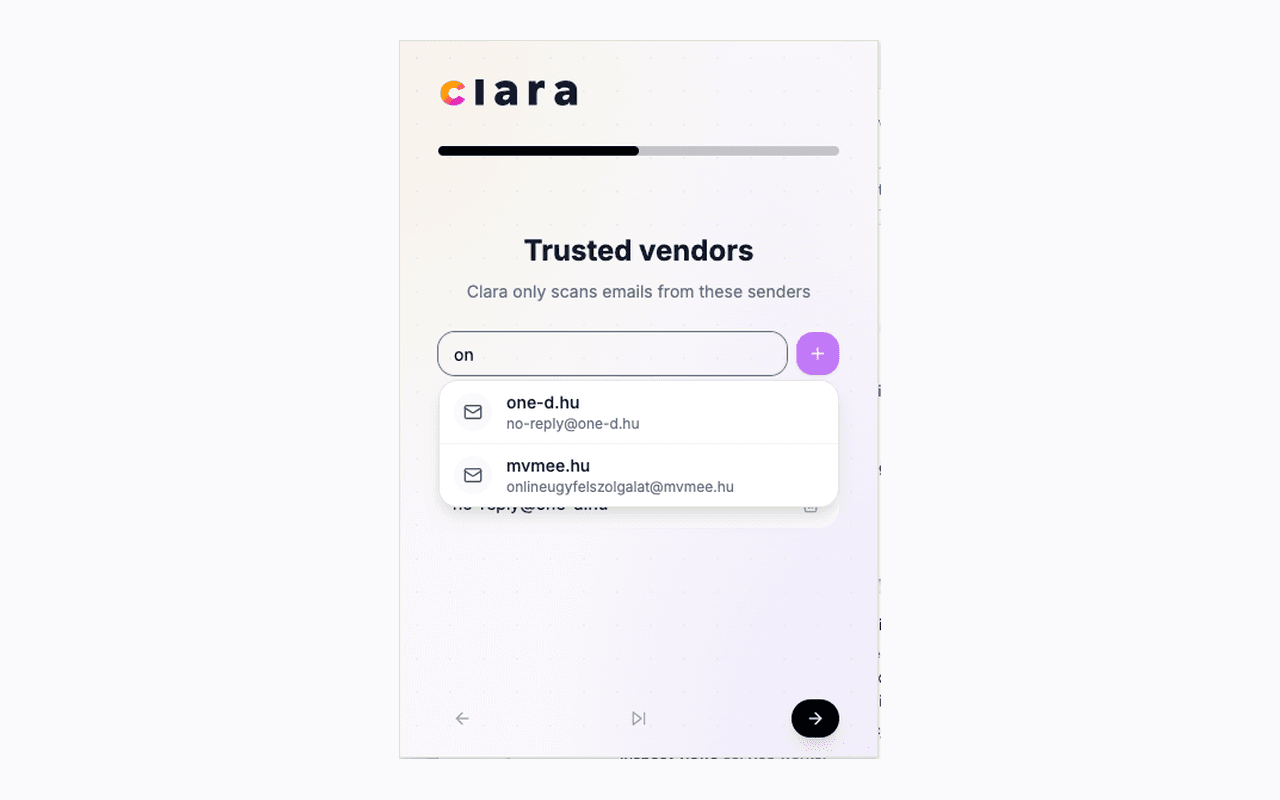
Add the vendors you want to track
This is the key step. Go to Settings and add the email addresses of companies that send you invoices. For example, if your electricity provider sends bills from billing@energy-company.com, add that address.
Clara only scans emails from vendors you explicitly add. It doesn't touch the rest of your inbox. On the free plan you can track up to 3 vendors. Pro gives you unlimited.
Not sure which email address a vendor uses? Search your Gmail for the company name and check the “From” field on a recent invoice.
Run your first scan
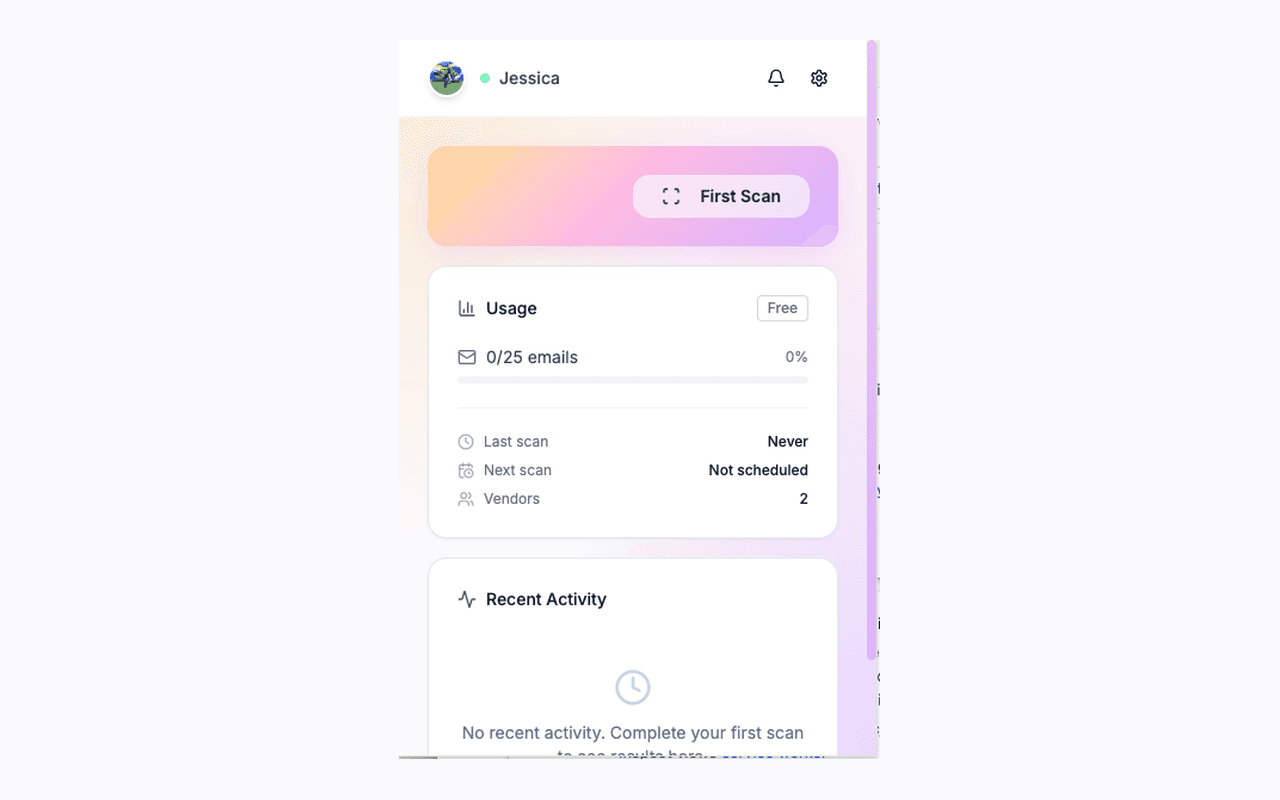
Go back to the main screen and hit “Scan.” Clara searches your Gmail for emails from your configured vendors, classifies each one, and extracts the invoice data — amounts, dates, tax, due dates, account numbers, billing periods, and more.
The first scan for each vendor takes a few seconds longer because Clara is learning that vendor's invoice format. It builds extraction patterns specific to each sender. After that, repeat scans are faster because Clara reuses those patterns instead of calling the AI again.
You'll see a progress indicator as emails are processed. Clara extracts up to 16 fields per invoice, depending on what the email contains.
View your results in Google Sheets
Once the scan completes, Clara exports the extracted data to a Google Sheet. Each row is one invoice. Columns include the fields Clara extracted: vendor name, invoice amount, tax, dates, and whatever else was in the email.
The Sheet is a normal Google Sheet — sort it, filter it, add formulas, share it with your accountant. Clara doesn't lock you into any proprietary format.
What's next
- →Set up scheduled scans. Instead of scanning manually, set Clara to run daily, weekly, or monthly. Your Sheet stays up to date without you opening the extension. (Pro plan.)
- →Enable PDF processing. Some vendors send invoices as PDF attachments instead of in the email body. Pro plan includes PDF extraction — Clara reads the attachment and pulls data from it.
- →Add more vendors. Start with a few to see how it works, then add the rest. Clara learns each vendor's format independently, so accuracy improves per vendor over time.
- →Choose your fields. Clara can extract 16 different fields. Pick the ones relevant to your workflow in Settings. Don't need account numbers? Turn them off.
Ready to stop copy-pasting invoices?
Clara extracts up to 17 fields from your Gmail invoices. Request access to get started.
Request AccessRelated
I Tested Every Tool for Automating Gmail Invoices to Google Sheets →